Kitchen — taking and fulfilling orders
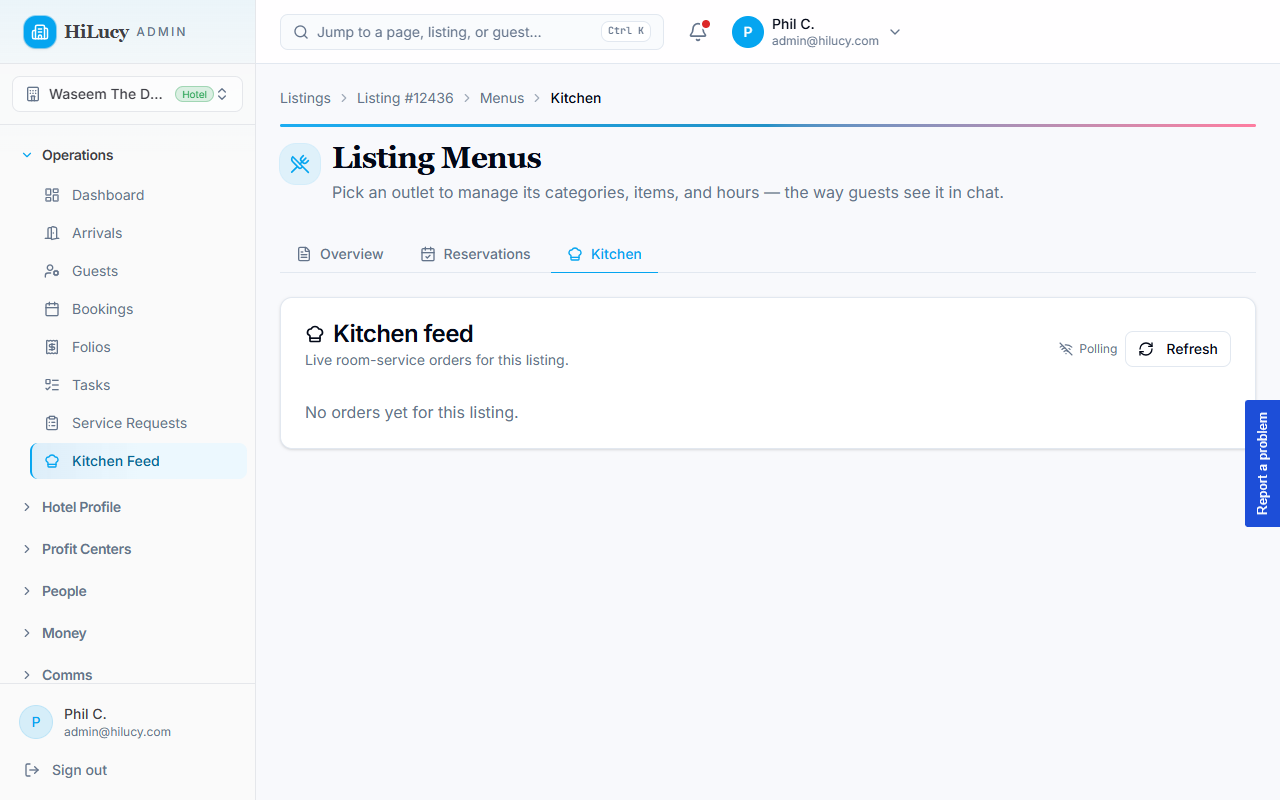
Once guests start placing orders (from chat or from the SPA), staff need a screen to actually work them. That's the Kitchen.
Where to find it
wp-admin → Kitchen (top-level item with the clipboard icon, position 59 — right after Menu Manager).
Visible to:
- Admins — see every property
- Listing owners — see their own listings
- Assigned staff — anyone with a row in
wp_hilucy_listing_stafffor a listing automatically sees that listing's orders. Add staff via the Listing edit screen → Staff metabox.
If a guest belongs to a property you can't manage, you simply won't see their orders. No special role needed.
The board
Five columns, left → right:
┌────────┐ ┌────────────┐ ┌─────────┐ ┌─────────────────┐ ┌───────────┐
│  New   │ │Acknowledged│ │ In prep │ │Out for delivery │ │ Delivered │
└────────┘ └────────────┘ └─────────┘ └─────────────────┘ └───────────┘
Cancelled orders collapse into a "Cancelled today" disclosure under the board so the active board stays focused.
Each card shows order id, guest name + room, items, total, age, and any guest notes. The primary button on each card moves it one column to the right; a secondary "Cancel" link prompts for a reason.
Sound on new orders
A small toggle in the toolbar — "Sound on new orders" — plays a short beep when a brand-new order arrives. The setting is per-browser (localStorage), so the kitchen tablet can be on while a back-office laptop running the same Kitchen page stays silent.
The beep only fires on transitions to New — not on every status change — so it's a real signal, not noise.
Live updates across multiple tablets
The board updates automatically when a colleague at another tablet transitions an order. No need to refresh. Each tablet keeps a long-lived SSE connection to the WordPress server and reconnects automatically if the connection drops (e.g., when the kitchen WiFi flakes).
If you do see staleness, hit Refresh in the toolbar — that re-fetches from scratch.
Cancel reasons matter
When you cancel an order, the prompt asks for a reason. Whatever you type is shown to the guest in the chat thread or on the /orders page, prefixed with "Cancelled — ". A few useful conventions:
- Out of stock — "Out of mojito mix tonight, sorry."
- Kitchen closed — "Kitchen closed at 11 — placed too late."
- Couldn't reach the room — "Three knock attempts, no answer."
Cancellation also automatically:
- Voids the linked
wp_folio_itemsrows so the running folio total drops. - Issues a Stripe refund if the order was charged via per-charge PaymentIntent (the fallback path when no folio was open). On-folio orders need no Stripe call — the pre-auth simply settles for less at folio close.
If the refund fails (network blip, expired card, etc.), the cancel
still goes through — the order is marked cancelled, items are voided,
but a room_service.order.refund_failed event is emitted to the
observability stream so you can follow up manually in the Stripe
dashboard.
What guests see when you click
Each transition fires Lucy a message into the same chat thread the guest used to order, only for transitions guests care about:
| Click | Lucy posts |
|---|---|
| Acknowledge | (silent — internal handoff) |
| Start prep | "Your [items] is being prepared — I'll let you know when it's on the way." |
| Out for delivery | "On the way to [room] now." |
| Mark delivered | "[items] delivered. Enjoy!" |
| Cancel | "I had to cancel that order. Reason: [your reason]. You haven't been charged." |
WhatsApp guests see the same messages next time they open the chat. Web-chat guests see them in real time.
When something goes wrong
- The board shows "Failed to load orders" — your session may have expired. Reload wp-admin and sign in again.
- An order doesn't appear in your board — confirm the order's
listing_idmatches a listing you can manage. If you can manage the listing in Menu Manager but not Kitchen, the listing-staff row may be missing — check the Listing edit screen → Staff metabox. - The board never updates without manual refresh — your browser may be blocking SSE behind a corporate proxy. The 60-second polling fallback still keeps you reasonably current; refresh manually for faster updates.
Auditability
Every transition writes a row to the order's status_history JSON
column with {status, ts, by_user_id, note}. To inspect the full
timeline of any order, view it on the staff card or query directly:
SELECT id, status_history FROM wp_hilucy_menu_orders WHERE id = 123;
The same history powers the timeline shown on the guest's /orders
page.