Comment les clients commandent — les deux parcours
Il y a deux façons pour un client de votre établissement de passer une commande de restauration, et les deux aboutissent au même endroit : la cuisine voit une commande, et la charge atterrit sur son folio (ou, quand aucun folio n'est ouvert, il reçoit un lien Stripe sécurisé).
La restauration est organisée par point de vente — votre restaurant, bar, café et opérations de room service apparaissent chacun comme une destination propre avec une photo, une description, des horaires et un statut Ouvert/Fermé en direct.
Parcours 1 : Lucy dans le chat
La plupart des clients arrivent ici naturellement. Ils ouvrent le chat — depuis le portail client, la page WiFi ou WhatsApp — et touchent Restauration ou demandent simplement :
- « Qu'y a-t-il au menu du room service ? »
- « J'ai faim, qu'est-ce que je peux avoir ? »
- « Puis-je réserver une table pour 4 ce soir ? »
- « Envoyez-moi un café. »
Le chat demande d'abord ce qu'ils veulent faire : réserver une table ou commander à manger.
Commander à manger
Le client parcourt vos points de vente. Chaque carte de point de vente affiche sa photo, sa description et un badge vert Ouvert ou gris Fermé. Choisir un point de vente ouvert affiche son menu avec les photos des articles, les prix et les tags diététiques. Les articles vont dans un panier, et le panier montre l'image complète avant tout envoi :
- Sous-total des articles
- Pourboire en ligne distincte, lorsque le point de vente en exige un (avec le pourcentage indiqué)
- Frais de livraison, lorsque le point de vente en facture pour le room service
- Une note « Les prix incluent X % de taxe » le cas échéant
Si le client choisit un point de vente fermé, un avis ambre explique qu'il est fermé et quand il rouvre — rien ne peut être commandé d'ici là.
Réserver une table
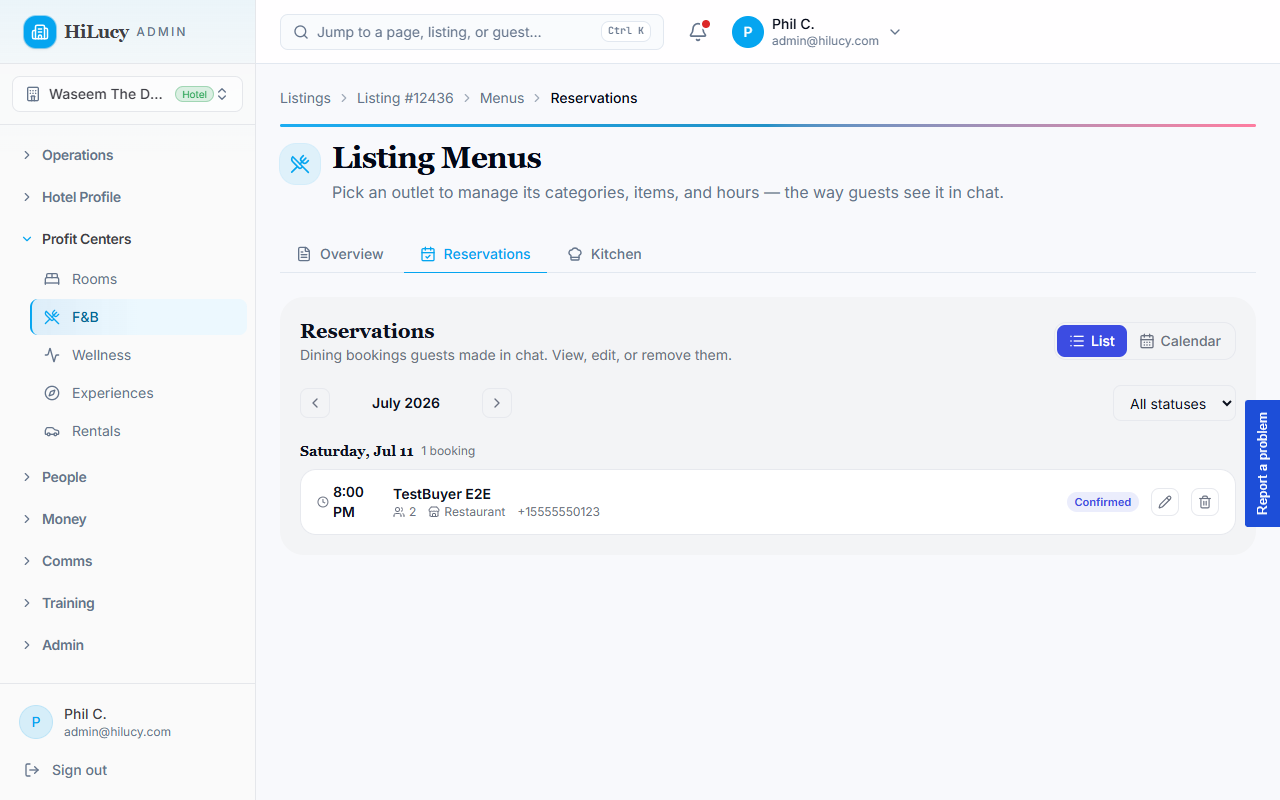
Pour les points de vente qui prennent des réservations, le client choisit le nombre de personnes, la date et l'heure directement dans le chat. Le sélecteur d'horaires affiche la disponibilité en direct : seuls les créneaux réellement réservables sont sélectionnables, et les horaires complets ou passés sont grisés. Le client reçoit une carte de confirmation une fois la réservation passée.
Parcours 2 : la page /room-service
Pour les clients qui aiment parcourir :
- Ils ouvrent
/room-servicedepuis la carte d'action rapide du tableau de bord (elle apparaît automatiquement une fois le contexte de l'annonce défini pendant l'arrivée ou via le chat). - Le menu se charge groupé par point de vente et par catégorie avec photos, prix et tags diététiques.
- Touchez un article pour l'ajouter au panier. Une pastille flottante « Voir le panier » en bas affiche le total courant.
- Ouvrez la fiche du panier, ajustez les quantités ou retirez des articles, et touchez Continuer pour confirmer. Le panier affiche le même détail de pourboire, frais de livraison et taxe que le chat.
- La boîte de dialogue de confirmation demande la chambre/l'emplacement et toute demande particulière, puis Passer la commande — X,YZ $ l'envoie.
Les clients voient une bannière de confirmation verte avec le message de résultat.
« Sur votre chambre » ou « Lien de paiement » — quand chacun s'applique
Le point d'entrée de commande choisit automatiquement :
- Folio ouvert + carte enregistrée → la charge est ajoutée au folio ouvert. Le client voit « Ajouté à votre chambre — le personnel est prévenu. » Réglé à la clôture du folio.
- Folio ouvert mais l'incrément échoue → bascule sur un paiement par charge sur la même carte. Même message d'expérience, juste un objet Stripe différent en coulisses.
- Aucun folio ouvert → une commande en attente est créée et une URL de paiement Stripe est renvoyée. Le client voit le bouton « Payer et confirmer » (dans le chat) ou un lien de paiement (sur le SPA).
Points de vente et horaires de service
Chaque point de vente porte ses propres horaires, et les menus au sein d'un point de vente peuvent avoir leurs propres plages de service (menu café, minibar, menu dîner). Les clients voient toujours chaque point de vente et chaque menu, mais les articles ne peuvent être commandés que lorsque leur point de vente et leur menu sont dans la plage :
- Les cartes de point de vente affichent un badge Ouvert / Fermé en direct ; les points de vente fermés indiquent quand ils rouvrent.
- Chaque en-tête de groupe de menu affiche son statut actuel, par exemple « Service en cours · 7h–11h » (vert) ou « Fermé · Ouvre à 17h » (gris).
- Les articles d'un menu fermé affichent un bouton Ajouter grisé avec une info-bulle (« Disponible 17h–23h »). Le toucher ne fait rien.
- Si un client a déjà dans son panier un article passé hors plage (le menu a fermé pendant qu'il parcourait), la fiche du panier le signale en ambre et le bouton Passer la commande est désactivé jusqu'à ce qu'il le retire.
- La même règle s'applique à Lucy dans le chat — les commandes hors plage renvoient un clair « disponible uniquement 17h–23h ».
Les menus sans plage de service définie sont traités comme toujours ouverts, et les articles non affectés à un groupe de menu restent toujours commandables.
Allergènes et temps de préparation
Les articles peuvent porter des tags diététiques (végan, végétarien, sans gluten, sans lactose, épicé, contient des fruits à coque) — ils s'affichent en petites pastilles sous la description. Le temps de préparation, lorsqu'il est défini, s'affiche à côté de l'article (« 8 min »), et les points de vente de room service affichent une estimation du délai de livraison.
Les clients allergiques peuvent les indiquer dans le champ Demandes particulières de la boîte de dialogue de confirmation. Cette note est transmise au personnel dans la notification de la cuisine.
Contexte d'annonce — pourquoi le point d'entrée du room service se cache parfois
La carte du tableau de bord et les invites de démarrage du chat n'apparaissent que lorsque le SPA sait à quel établissement se trouve le client. L'id de l'annonce est défini automatiquement :
- Lorsque le client complète le parcours d'arrivée à
/arrive/[token] - Lorsqu'il accède directement à
/room-service?listing_id=…avec une chaîne de requête (lien profond) - Lorsque le personnel lui envoie un lien magique avec l'id de l'annonce encodé
Si un client atteint le tableau de bord sans contexte d'annonce, la carte du room service est masquée plutôt que de l'importuner avec un appel à l'action vide. Le personnel peut corriger cela en lui envoyant un nouveau lien d'arrivée ou en lui demandant de démarrer le chat depuis la page WiFi, ce qui, dans les deux cas, définit le cookie.