Menu Manager — building an orderable menu
The Menu Manager is the single place where you turn a printed menu into items
guests can actually order — from Lucy in chat or from the new
/room-service page in the guest portal. Every published item is also a real
WooCommerce product behind the scenes, so it flows through standard checkout
when a folio isn't open.
Where to find it
There are two paths into the Menu Manager:
- wp-admin → Menu Manager (top-level item with the food icon, around position 58 in the sidebar).
- From the listing edit screen: open any property in Listings → Edit and use the "Room Service Menu" box on the right sidebar. The "Manage menu items →" button takes you straight in with that listing pre-selected.
The dashboard at a glance
[ Listing dropdown ]   [ Refresh ]

┌─────────────────────────────────────────┐
│ Extract from PDF or photo (AI-assisted) │
│   [Choose File]  [Extract items]        │
└─────────────────────────────────────────┘

┌─────────────────────────────────────────┐
│ Add item                                │
│   Name | Description | Price | Category │
│                                  [Add]  │
└─────────────────────────────────────────┘

┌─────────────────────────────────────────┐
│ Menu items (44)                         │
│   beverage (37)                         │
│      ICED | COCO BLACK MAGIC  $7.43 ... │
│      HOT | LATTE              $5.14 ... │
│   main (3) ...                          │
└─────────────────────────────────────────┘
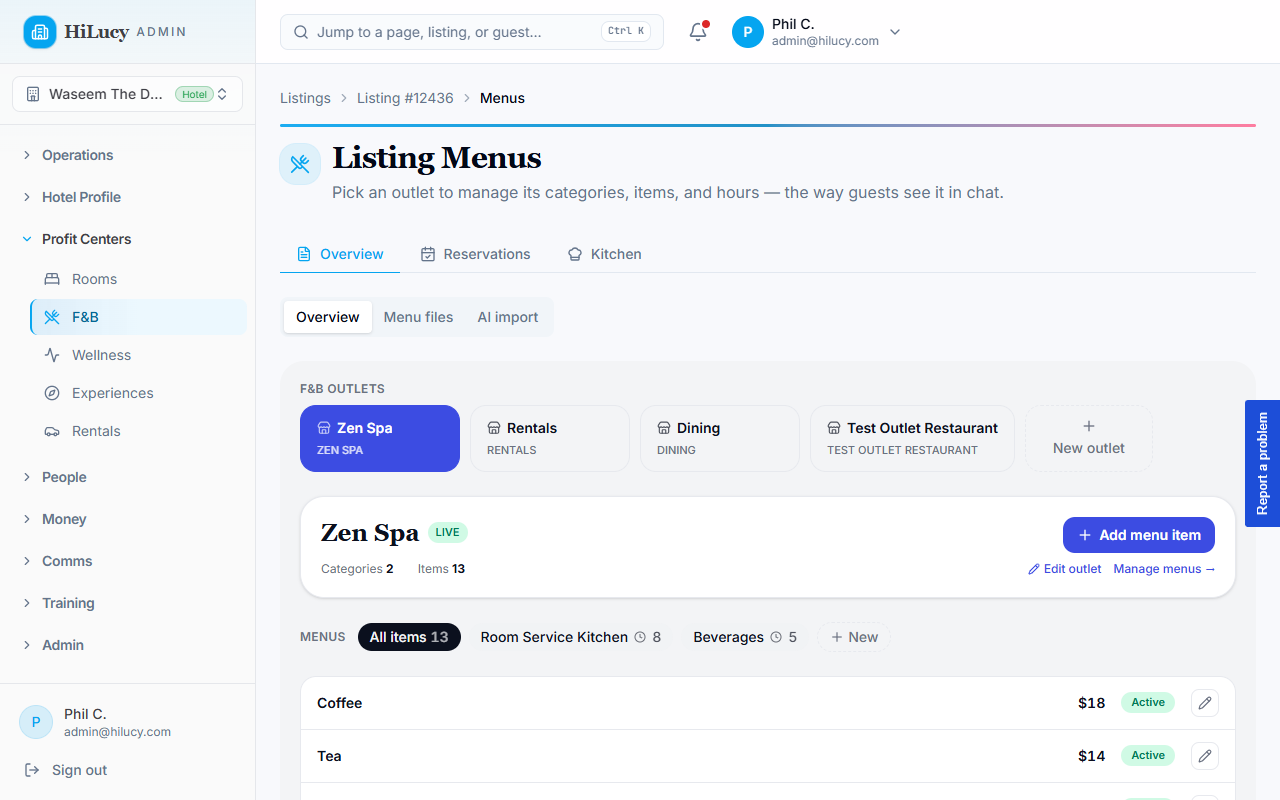
The items list is grouped by category. Each row has inline Edit / Delete controls and a status pill: green "Available" or grey "Hidden".
Adding an item manually
- Pick the property in the Listing dropdown at the top.
- In Add item, type the name, a one-line description, the price (in USD), and choose a category.
- Click Add. The item appears immediately in the list below, grouped under its category.
The dashboard auto-creates the matching WooCommerce product with:
product_type = menu_item_priceand_regular_priceset from your price_menu_item_idand_menu_item_listing_idpostmeta linking back- Status
publish(orprivatewhen "Available" is unchecked) - Catalog visibility hidden — items are ordered through the chat or the
/room-serviceSPA, not the public WooCommerce shop.
Editing or removing an item
- Edit — opens an inline row editor. Change name, description, price, category, prep time, or toggle "Available". Save commits both the menu row and the backing product in one go.
- Delete — removes the menu row and trashes the WC product. You can always recreate the item later (it gets a new id).
Categories
The default categories are tuned for hospitality menus:
| Slug | Use for |
|---|---|
breakfast | Anything served in the morning |
appetizer | Starters, small plates, snacks |
main | Entrées, mains, larger dishes |
dessert | Sweets and pastries |
beverage | All drinks (coffee, juice, soft drinks, alcohol) |
snack | Anything in between |
general | Add-ons or items that don't fit elsewhere |
Guests see categories grouped on the SPA and Lucy uses them to filter ("show me breakfast").
Dietary tags & prep times (optional but useful)
You can flag items as vegan, vegetarian, gluten_free, dairy_free,
spicy, or contains_nuts (adjustable later). Prep time in minutes
shows up next to each item in the SPA — useful for "what's quick?"
flows.
Menu groups & service hours
Most properties run more than one menu — a Cafe Menu in the morning, a Dinner Menu after 5pm, a Mini Bar that's always open. Menu groups let you mirror that on HiLucy. Each group has a name, an optional short description, and a service window (start + end time, or "always open").
How it works
- Groups appear above the items table in the Menus & service hours panel.
- Add a group with Add menu at the bottom of the table. Name it ("Cafe Menu"), then either tick Always open or set a window ("07:00 → 11:00").
- Move items into a group from the items table's Menu dropdown. An item with no group stays always-orderable.
- The list shows a status pill — "Now serving" (green) or "Closed" (grey) — that refreshes every minute so you can see at a glance which menus are live right now.
Cross-midnight windows
A "Late Night" menu that runs 22:00 → 02:00 is recognized as cross-midnight: the panel shows "open until 02:00 the next day" so you know the window did not get inverted.
What guests see
Guests always see every group on the /room-service page so they
can browse the Dinner Menu at 9am. But:
- Each group header shows a "Now serving · 7am–11am" or "Closed · Opens at 5pm" pill.
- Items in a closed group have a greyed-out Add button with a tooltip telling the guest when the menu opens.
- If a guest already added an item that has since gone out of window, the cart highlights it in amber and blocks checkout until they remove it.
- If the guest tries to order through Lucy out-of-window, the API returns a clear error and Lucy passes it through ("Mole Tacos is only available 5pm–11pm — want to pick something else?").
Listing timezone
Service hours are evaluated against the listing's timezone, set in
the property's HiLucy admin (_hilucy_timezone postmeta) and falling
back to the WordPress site timezone. Make sure each property has its
correct local TZ — otherwise "now serving" will be wrong.
Deleting a group
Deleting a group does not delete its items. The group's items have
their menu_group_id set back to NULL (they become always-orderable),
then the group row is removed.
Best practices
- Keep names short. They're the largest text on the card. Save flowery adjectives for the description.
- Use one-line descriptions that list 3–6 ingredients. Lucy uses these directly in chat.
- Toggle availability rather than deleting items that are temporarily out — your guests' menu history stays linkable.
- Edit prices in the dashboard, not the WC product. If you edit the WC product directly, the menu row will go stale.
Next up: AI extraction — how to skip the typing.