How guests order — the two paths
There are two ways a guest at your property can place a food & drink order, and both end up in the same place: the kitchen sees an order, and the charge lands on their folio (or, when no folio is open, they get a secure Stripe link).
Dining is organized by outlet — your restaurant, bar, cafe, and room-service operations each appear as their own destination with a photo, description, hours, and a live Open/Closed status.
Path 1: Lucy in chat
Most guests land here naturally. They open the chat — from the guest portal, the WiFi splash, or WhatsApp — and tap into Food & Drink or just ask:
- "What's on the room service menu?"
- "I'm hungry, what can I get?"
- "Can I book a table for 4 tonight?"
- "Send me a coffee."
The chat first asks what they want to do: reserve a table or order food.
Ordering food
The guest browses your outlets. Each outlet card shows its photo, description, and a green Open or grey Closed badge. Picking an open outlet shows its menu with item photos, prices, and dietary tags. Items go into a cart, and the cart shows the full picture before anything is placed:
- Subtotal for the items
- Gratuity as a separate line, when the outlet requires one (with the percentage shown)
- Delivery fee, when the outlet charges one for room service
- A "Prices include X% tax" note when applicable
If the guest picks a closed outlet, an amber notice explains it's closed and when it opens next — nothing can be ordered until then.
Reserving a table
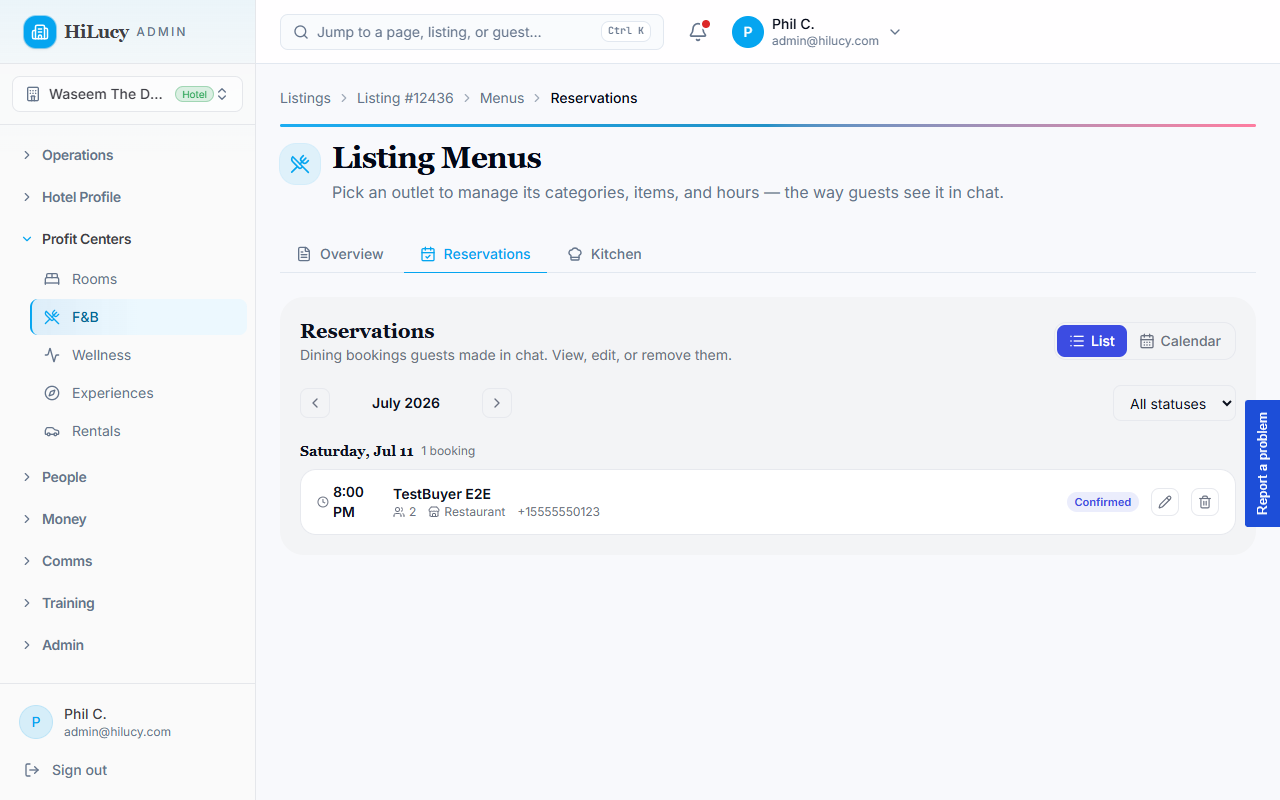
For outlets that take reservations, the guest picks a party size, date, and time right in the chat. The time picker shows live availability: only genuinely bookable slots are selectable, and full or past times are greyed out. The guest gets a confirmation card once the reservation is placed.
Path 2: The /room-service page
For guests who like to browse:
- They open
/room-servicefrom the dashboard quick-action card (it appears automatically once the listing context is set during arrival or via the chat). - The menu loads grouped by outlet and category with photos, prices, and dietary tags.
- Tap an item to add to cart. A floating "View cart" pill at the bottom shows the running total.
- Open the cart sheet, adjust quantities or remove items, and tap Continue to confirm. The cart shows the same gratuity, delivery fee, and tax breakdown as the chat.
- The confirm dialog asks for room/location and any special requests, then Place order — $X.YZ sends it.
Guests see a green confirmation banner with the result message.
"On your room" vs "Pay link" — when each happens
The order endpoint chooses automatically:
- Folio open + card on file → the charge is added to the open folio. Guest sees "Added to your room — staff notified." Settles at folio close.
- Folio open but increment fails → falls back to a per-charge payment on the same card. Same UX message, just a different Stripe object behind the scenes.
- No folio open → a pending order is created and a Stripe checkout URL is returned. Guest sees the "Pay & confirm" button (in chat) or a checkout link (on the SPA).
Outlets & service hours
Each outlet carries its own hours, and menus within an outlet can have their own service windows (Cafe Menu, Mini Bar, Dinner Menu). Guests always see every outlet and menu, but items can only be ordered while their outlet and menu are in-window:
- Outlet cards show a live Open / Closed badge; closed outlets show when they open next.
- Each menu group header shows its current status, e.g. "Now serving · 7am–11am" (green) or "Closed · Opens at 5pm" (grey).
- Items in a closed menu show a greyed-out Add button with a tooltip ("Available 5pm–11pm"). Tapping does nothing.
- If a guest already has an item in their cart that has since gone out-of-window (the menu closed while they were browsing), the cart sheet flags it amber and the Place order button is disabled until they remove it.
- The same rule applies to Lucy in chat — out-of-window orders return a clear "only available 5pm–11pm" message.
Menus that don't have a service window set are treated as always open, and items not assigned to a menu group stay always-orderable.
Allergens & prep time
Items can carry dietary tags (vegan, vegetarian, gluten-free,
dairy-free, spicy, contains nuts) — they show as small pills
under the description. Prep time, when set, shows next to the item
("8 min"), and room-service outlets show an estimated delivery time.
Guests with allergies can add them in the Special requests field on the confirm dialog. That note is sent through to staff in the kitchen notification.
Listing context — why the room-service entry point sometimes hides
The dashboard card and chat starter prompts only show when the SPA knows which property the guest is at. The listing id is set automatically:
- When the guest completes the arrival flow at
/arrive/[token] - When they hit
/room-service?listing_id=…directly with a query string (deep link) - When staff sends them a magic link with the listing id encoded
If a guest reaches the dashboard with no listing context, the room-service card is hidden rather than nagging them with an empty CTA. Staff can fix this by sending them a fresh arrival link or by asking them to start the chat from the WiFi splash, both of which set the cookie.